Quick answer
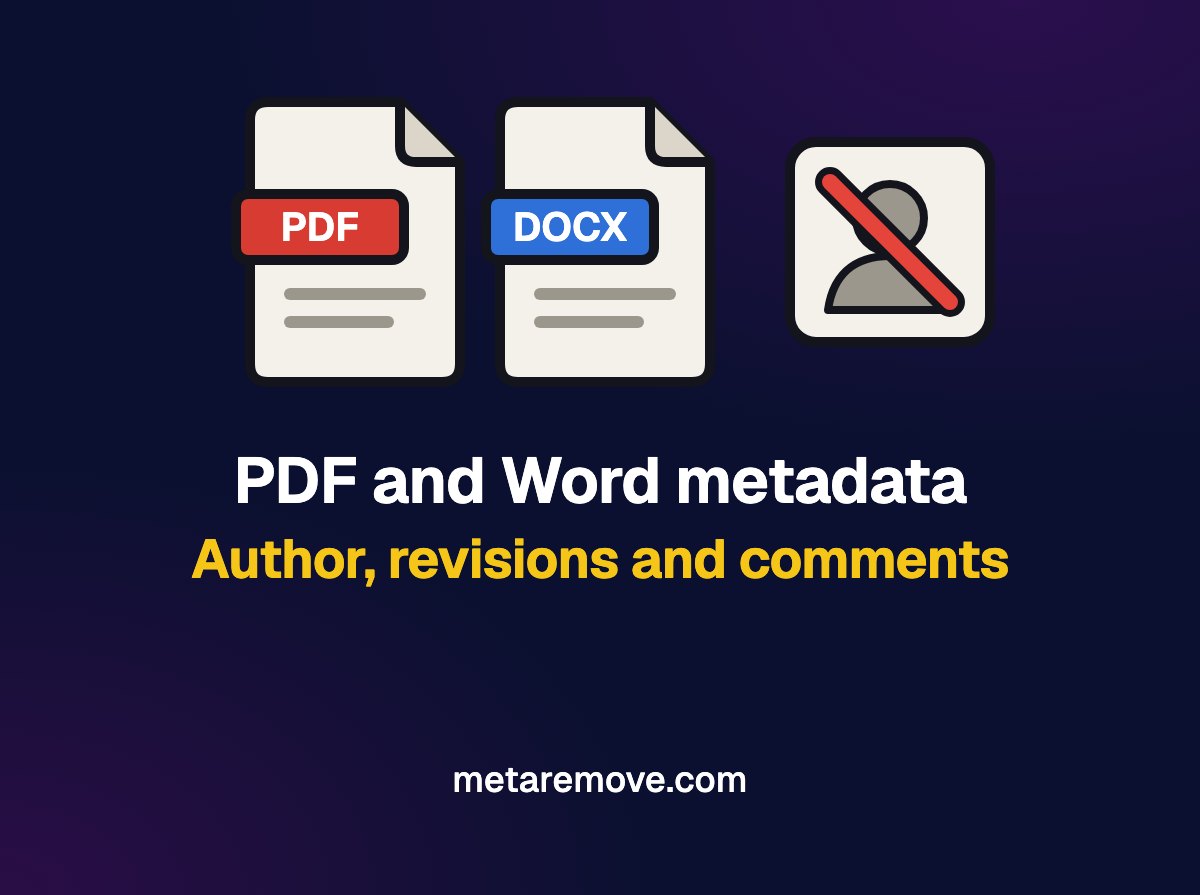
To remove metadata from a Word file, use the Document Inspector (File > Info > Check for Issues) on Windows or delete the properties by hand on Mac. In a PDF, clear the properties and the XMP block and save a new file, because earlier edits can stay inside it. Exporting Word to PDF does not remove everything: the PDF gets metadata of its own.
In this article you will learn
- Which fields a PDF stores in the Info dictionary and in XMP
- What a DOCX records about author, company, revisions and editing time
- How to use the Word Document Inspector and the LibreOffice option
- Why exporting to PDF or drawing a black box does not clean the file
- How to check PDF and DOCX files in your browser before sending
In this article
Before you send a contract, a resume or a proposal, it pays to know what goes with it. A PDF or a Word file stores, outside the page, the name of the person who created the document, the program used, the dates, and sometimes comments and deleted passages. Removing metadata from PDF and Word files takes a few minutes once you know where each piece of data lives.
What metadata does a PDF store?
A PDF has two places for metadata. The older one is the Info dictionary, with fields defined in the ISO 32000 standard:
| Field | What it stores |
|---|---|
| Title | Document title |
| Author | Name of the person who created the document |
| Subject and Keywords | Subject and keywords |
| Creator | Program that created the original document (for example, Word) |
| Producer | Program that generated the PDF |
| CreationDate and ModDate | Date and time of creation and of the last change |
The second is the XMP block, a chunk of XML that has existed since PDF 1.4 and that the standard itself names as the preferred way to store metadata. In PDF 2.0, most Info dictionary fields became deprecated, but the dates remain. In practice, many PDFs carry both, with the same data repeated. That is why deleting the author in one place and forgetting the other is a common mistake.
The Author field usually comes from the computer's user name or the Office account, without you ever typing anything. Dates can also carry the time zone of the place where the file was made.
What metadata does a Word file (DOCX) store?
A DOCX is a ZIP file with several XML parts. Two of them hold the properties:
- docProps/core.xml: author (creator), who saved it last (lastModifiedBy), revision number, and the creation, modification and last-printed dates;
- docProps/app.xml: company (Company), manager (Manager), template used (Template), program and version, and total editing time in minutes (TotalTime).
The text itself also holds data that does not appear on the page:
- comments, with the name of the person who wrote them;
- tracked changes: a deleted passage stays in the file, with the name of whoever deleted it, until someone accepts or rejects the change;
- hidden text, which exists in the file and only disappears from view;
- editing session identifiers (rsid), which make it possible to see whether two documents came from the same original;
- custom XML data, which does not appear in the document.
Has this metadata ever exposed anyone?
Yes. In 2003, the UK government published a dossier on Iraq as a Word file. The researcher Richard M. Smith opened the file and found a revision log with the user names of four officials who had edited the text. That log came from the old .doc format, but DOCX also stores the author, who saved it last and the revision number.
In 2005, Kansas police tracked down the killer known as BTK partly through a deleted Word file on a floppy disk: the metadata pointed to a church and to the name Dennis
. And in 2019, Paul Manafort's lawyers filed a PDF in court with black boxes over the text. Copying and pasting the passage was enough to read what was underneath.
How do I remove metadata in Word?
On Windows: Document Inspector
- Save a copy of the file. Microsoft warns that it is not always possible to restore what the inspector removes.
- Go to File > Info > Check for Issues > Inspect Document.
- Select the categories and click Inspect.
- Click Remove All in the categories you want to clean, such as document properties and personal information, comments and revisions, and custom XML data.
The inspector finds tracked changes, comments, ink annotations, versions and custom XML. It does not detect text hidden by other methods, such as white text on a white background. For future files, the Office privacy options include a setting that removes personal information from file properties on save.
On Mac
Microsoft says Word for Mac does not have a document inspector. The route is manual: under File > Properties, delete the data on the Summary tab and the entries on the Custom tab. Then, on the Review tab, accept or reject all tracked changes and delete the comments.
In LibreOffice
Under Tools > Options > LibreOffice > Security > Options, turn on Remove personal information on saving. According to LibreOffice Help, the program removes user data from file properties, comments and tracked changes: authors become Author1
, Author2
, and times are reset.
Does exporting Word to PDF remove the metadata?
Not completely. When you save as PDF, Word has a Document properties option: if it is selected, the properties go into the PDF. If you choose to publish the document showing markup, tracked changes go into the PDF too.
Even without those options, the generated PDF gets metadata of its own: the Producer, the Creator, the dates and, depending on the program, the author. A metadata guide from the US District Court for the District of Maine explains that generating the PDF in Acrobat drops the Word revision history but keeps the file's descriptive metadata if it is not cleaned. Exporting helps, and the PDF still needs to be checked.
How do I remove metadata from a PDF?
Three precautions cover most cases.
Clear the properties and the XMP
In Acrobat, the properties are under File > Document Properties. After deleting the fields, check that the XMP block is clean too. Acrobat Pro has a Sanitize document function, inside the Redact tool, that removes metadata, attachments, scripts, hidden layers, comments and form data in one go.
Save a new file
PDF supports incremental updates: the standard says changes are appended to the end of the file, leaving the original content intact, and that deleted objects stay in the file marked as deleted. A PDF that has been edited and saved many times can hold old versions of the text and the metadata. Saving as a new file usually rewrites the whole PDF without those layers, and the viewer shows whether anything is left.
Use real redaction instead of a black box
A black box drawn over text hides the passage on screen, but the text stays in the file, as in the Manafort case. The Acrobat Redact tool only removes the content after you apply the redaction. Adobe points out that comments, hidden layers and revision history can leak information even when the text on the page has been blacked out.
How do I check the file before sending it?
Open the PDF in the PDF metadata viewer. It shows the Info dictionary, the XMP block and Content Credentials (C2PA) markers when they exist. For a DOCX, use the document metadata viewer, which reads the properties in core.xml and app.xml. Both read the file in your browser without uploading anything, which matters when the document is confidential. The article on online and local metadata removers explains why that difference counts.
If the file still has an author, a company or revisions, MetaRemove removes author, revision history, hidden properties and Content Credentials from PDF and DOCX files after you sign up. Check the cleaned copy in the same viewer before sending it.
Sending the document through WhatsApp or Telegram does not help: documents go without compression and arrive as they left, as we show in which apps remove metadata. And if the PDF came out of an AI tool, see what C2PA is, the provenance record some generators attach to the file.
Frequently asked questions about PDF and Word metadata
Does converting to PDF remove Word metadata?
Only part of it. The Word revision history usually stays behind, unless you publish with markup, but the PDF can carry the document properties if that option is selected, and it gets metadata of its own, such as the program that generated it and the dates. Check the PDF in a metadata viewer and clear the properties and the XMP before sending.
Does a black box on a PDF delete the text?
No, when the box is only a shape drawn over the text. The text stays in the file and can be copied, as happened with the PDF in the Manafort case in 2019. Use a redaction tool and apply the redaction, which removes the content, and then sanitize the document to remove metadata, comments and hidden layers.
How do I remove personal information from Word on a Mac?
Word for Mac does not have the Document Inspector. Under File > Properties, delete the data on the Summary and Custom tabs. On the Review tab, accept or reject the tracked changes and delete the comments. Then open the DOCX in a document metadata viewer to see what is left in core.xml and app.xml.
Can metadata be removed automatically on save?
Partly. Office has a privacy option that removes personal information from file properties on save, and LibreOffice has Remove personal information on saving in its security options, which also replaces the names in comments and changes. Both remove the names: the text of the comments and the hidden passages stay in the file.
Sources
- ISO 32000-1:2008 (PDF 1.7), copy published by Adobe: §14.3 metadata and §7.5.6 incremental updates
- PDF Association, Arlington PDF Model: Info dictionary fields deprecated in PDF 2.0
- Microsoft Learn: Open XML extended properties (Template, Company, TotalTime)
- Microsoft Support: remove hidden data and personal information by inspecting documents
- Microsoft Support: Inspect Document in Word for Mac
- Microsoft Support: save or convert to PDF in Office desktop apps
- LibreOffice Help: security options, remove personal information on saving
- Adobe: how to redact a PDF and sanitize the document
- US District Court for the District of Maine: metadata FAQ
- Richard M. Smith: the revision log of the UK Iraq dossier, 2003
- Columbia Journalism Review: the Manafort filing with redactions that could be copied, 2019

The MetaRemove team is dedicated to helping content creators protect their privacy and optimize their content for maximum reach.